Muistiinpanoja kellumisesta
Ohjeita, vertailuja ja ajatuksia Floatien takana.
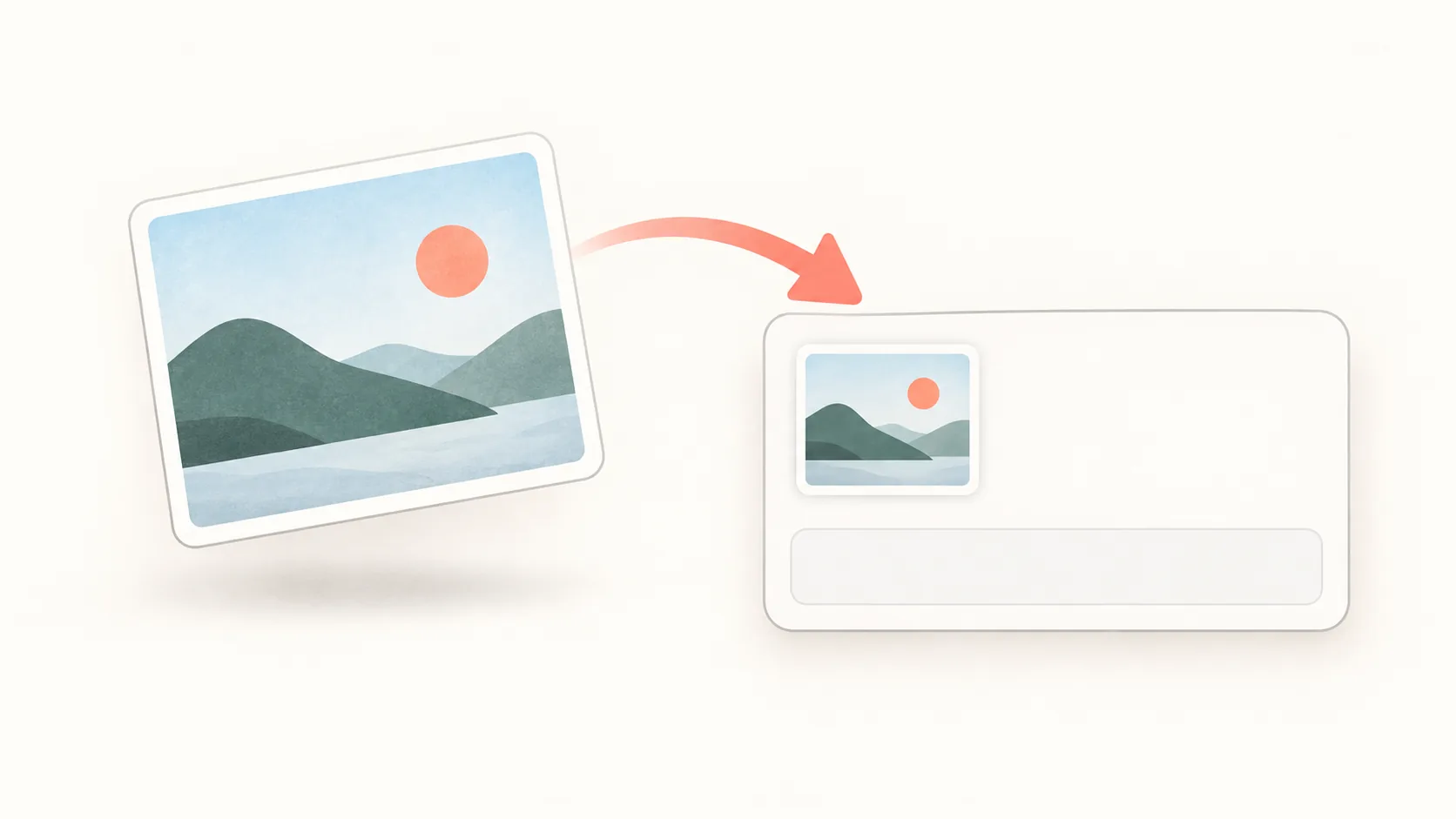
Kuvakaappauksen kopioiminen Macin leikepöydälle tallentamatta sitä
Kopioi Macin kuvakaappaus suoraan leikepöydälle painamalla Control-Shift-Command-4, liitä se viestiin ja ratkaise tilanteet, joissa appi vaatii liitetiedoston.
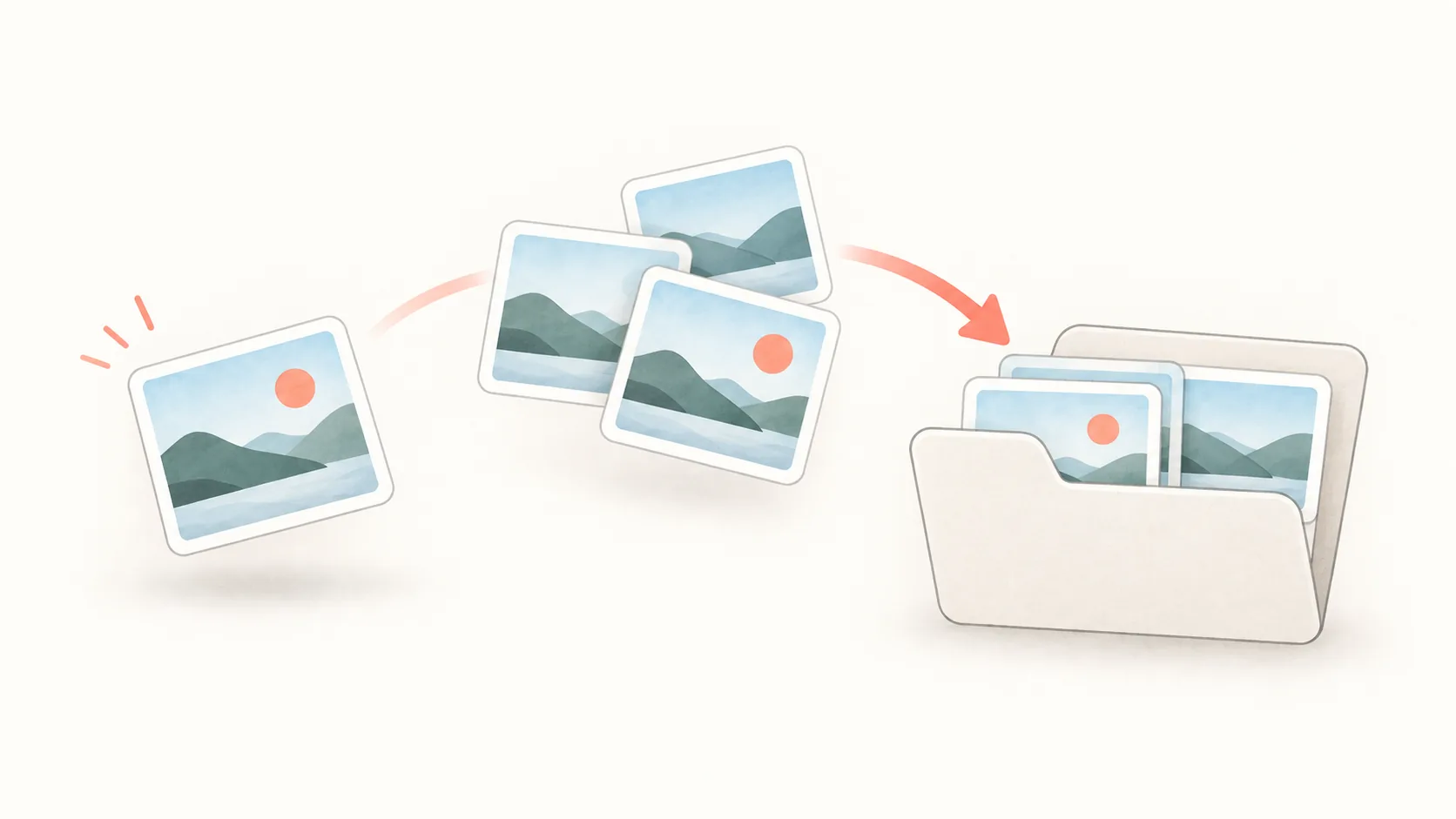
Kuvakaappausten järjestäminen Macilla ja työpöydän pitäminen siistinä
Hallinnoi Macin kuvakaappauksia omalla tallennuskansiolla, kuvaavilla tiedostonimillä, työpöydän pinoilla ja erillisellä työnkululla väliaikaisille kuville ja viitteille.
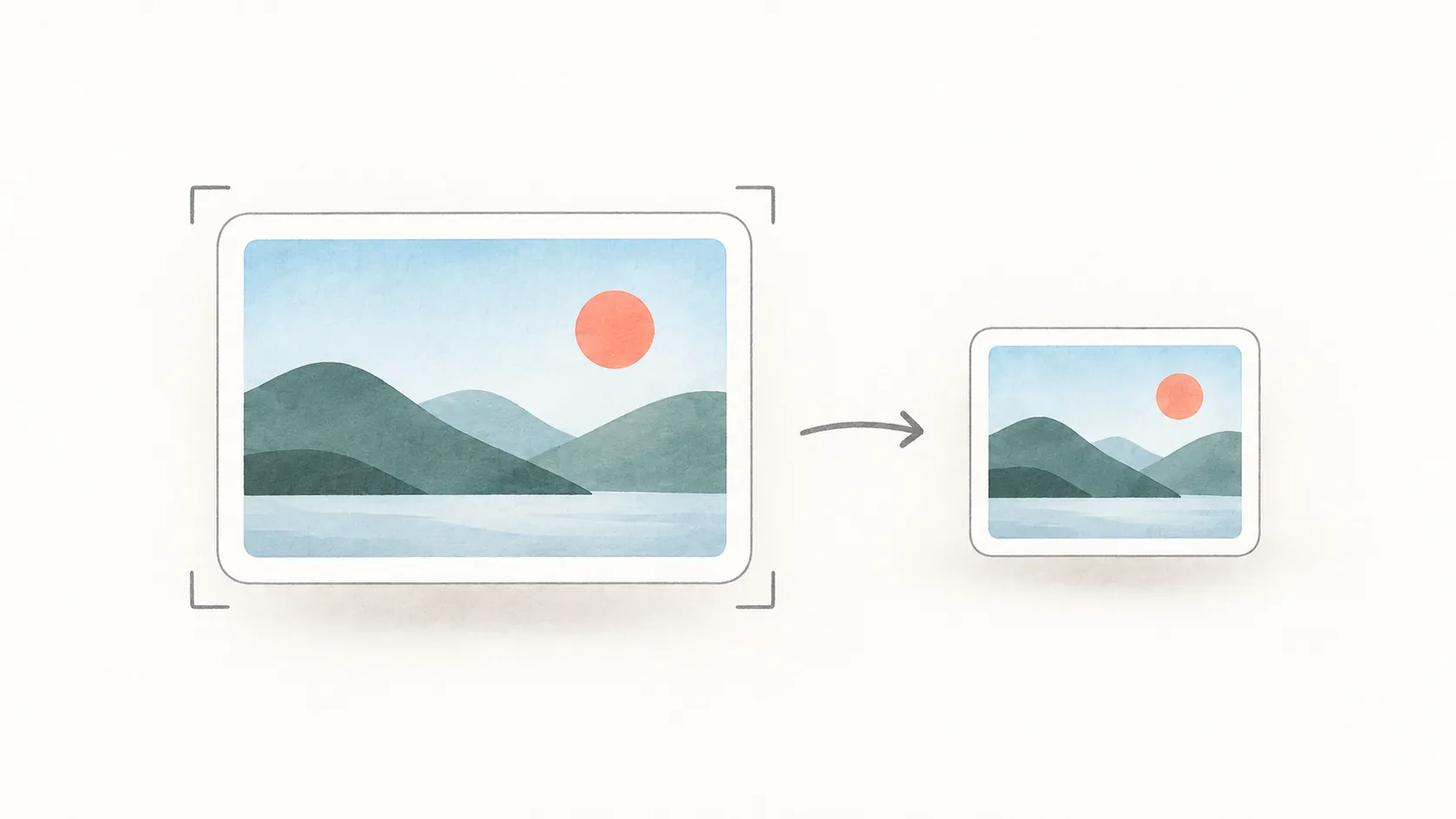
Macin kuvakaappauksen tiedostokoon pienentäminen luettavuutta menettämättä
Pienennä Macin kuvakaappausta Esikatselulla: rajaa tyhjä tila, vähennä pikselimittoja, valitse PNG tai JPEG ja varmista ennen jakamista, että teksti on yhä luettavaa.
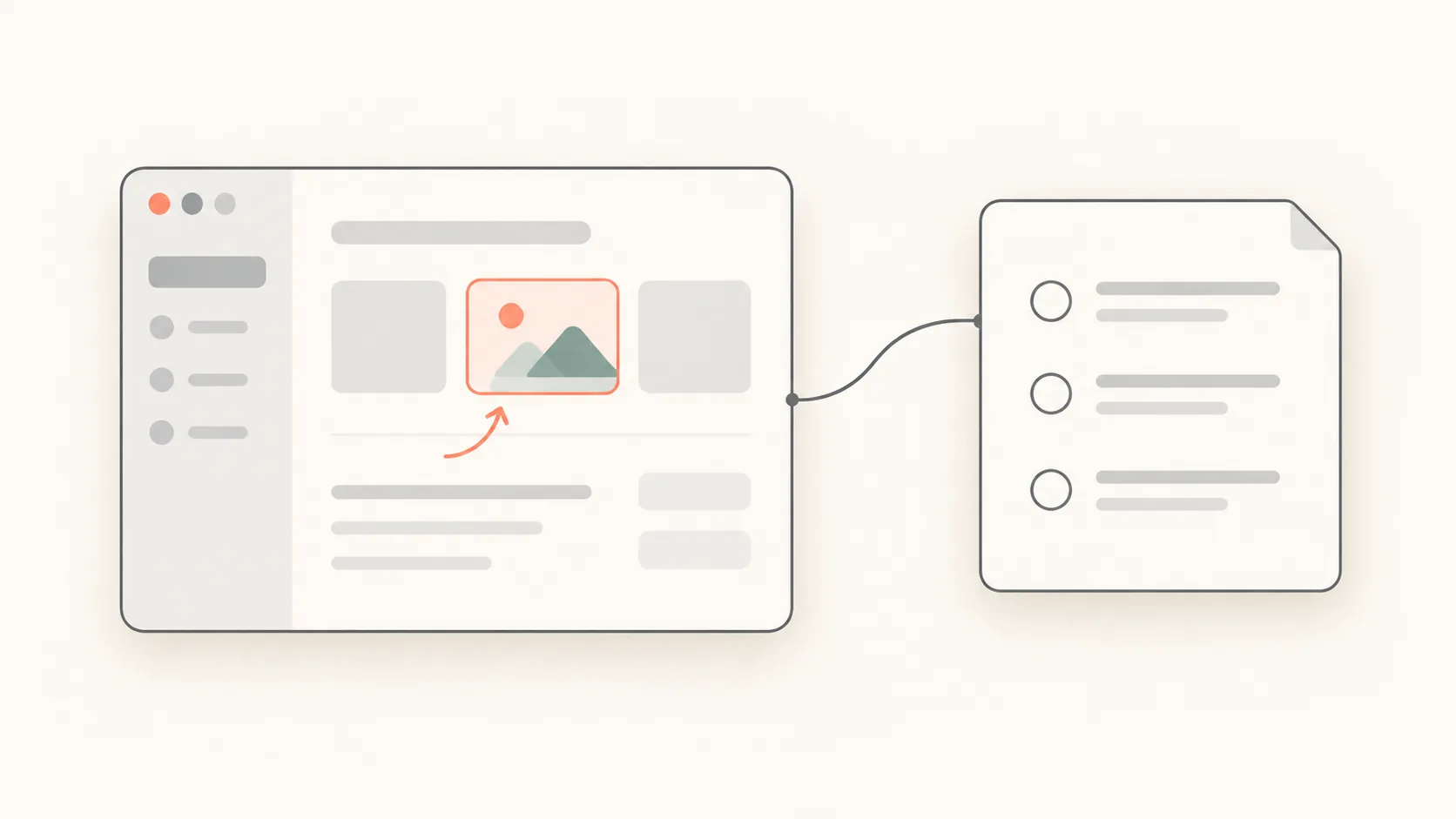
Hyödyllisten kuvakaappausten ottaminen Macin virheraporttia varten
Tee selkeämpi virheraportti rajaamalla kuvakaappaus, lisäämällä lyhyt toistamisohje, käyttämällä luettavia huomautuksia ja kirjaamalla tarkka virheteksti, jonka kehittäjät voivat hakea.
Macin kuvakaappausten tallennussijainnin vaihtaminen
Katso, minne Macin kuvakaappaukset tallentuvat, vaihda oletuskansio painamalla vaihto-komento-5, palauta työpöytä ja tarkista, miksi kuva menikin leikepöydälle.
How to Remove the Background From a Screenshot on Mac
Lifting the subject out of a capture and leaving the background transparent — Preview's background removal, Floatie's one-press version, and what makes a clean cut.
How to Pick a Colour From the Screen on Mac
Getting the HEX value of any colour on screen — the built-in Digital Colour Meter, Floatie's colour picker, and why the same colour sometimes reads differently.
How to Add Arrows and Numbers to a Mac Screenshot
Marking up a capture with arrows, boxes and numbered steps — what the built-in markup gives you, and what Floatie's editor adds on top of the floating shot.
How to Change Mac Screenshot Shortcuts
What to do when ⌘⇧3 or ⌘⇧4 clashes with another app or just doesn't suit your hands — where to change them, where clashes hide, and Floatie's own defaults.
How to Capture a Single Window on Mac
How to grab one window cleanly instead of dragging around it — the built-in shortcut, dropping the drop shadow, and Floatie's window capture.
Why I Built Floatie Instead of Using Fuwari
I liked how Fuwari leaves a capture floating on screen, but I wanted different borders, opacity, and saving. Here's how Floatie started.
How to Pin a Screenshot on Your Mac Screen
How to keep a screenshot floating on screen instead of filing it away. Move a Floatie shot, set its size and opacity, and pin it so other apps can't cover it.



After ⌘⇧4: The macOS Screenshot vs Floatie
The built-in macOS screenshot (⌘⇧3/4/5) is fast up to the moment it saves — after that it leaves you hanging. Here's what macOS does well, and what Floatie picks up from there.
How to Copy Text from a Screenshot on Mac
Stop retyping sentences out of screenshots. With Floatie's on-device text recognition (OCR) you can select and paste the text within seconds of capturing it.
How to Blur Sensitive Info in a Mac Screenshot
When a screenshot catches an email address, a phone number, or an API key, here is how to cover it with Floatie's mosaic tool and share it right away — step by step.
Scrolling Screenshots on Mac: A Long Page in One Shot
How to capture a long web page or conversation as a single stitched image instead of several separate shots. Floatie's scrolling capture shortcut, the steps, and how it differs from what macOS offers.
How to Record Part of Your Screen on Mac
How to record a single region or window instead of the whole screen. Pick the area in Floatie, then trim, crop, and blur the recording in the floating preview before exporting.
CleanShot X and Shottr Alternatives: How Floatie Compares
CleanShot X, Shottr, and Floatie compared on price, distribution, scrolling capture, OCR, and pinning shots on screen. Prices verified September 2026, and what each app does best.
Why the Buttons Live in the Four Corners
A floating Floatie shot has buttons in its corners instead of a fixed toolbar. Here's why the four most-used actions went to the corners and everything else went to the right-click menu.