How to Change the Screenshot Save Location on Mac
Press Shift-Command-5, open Options, and choose a save folder. New screenshots will go there; existing files stay where they are.
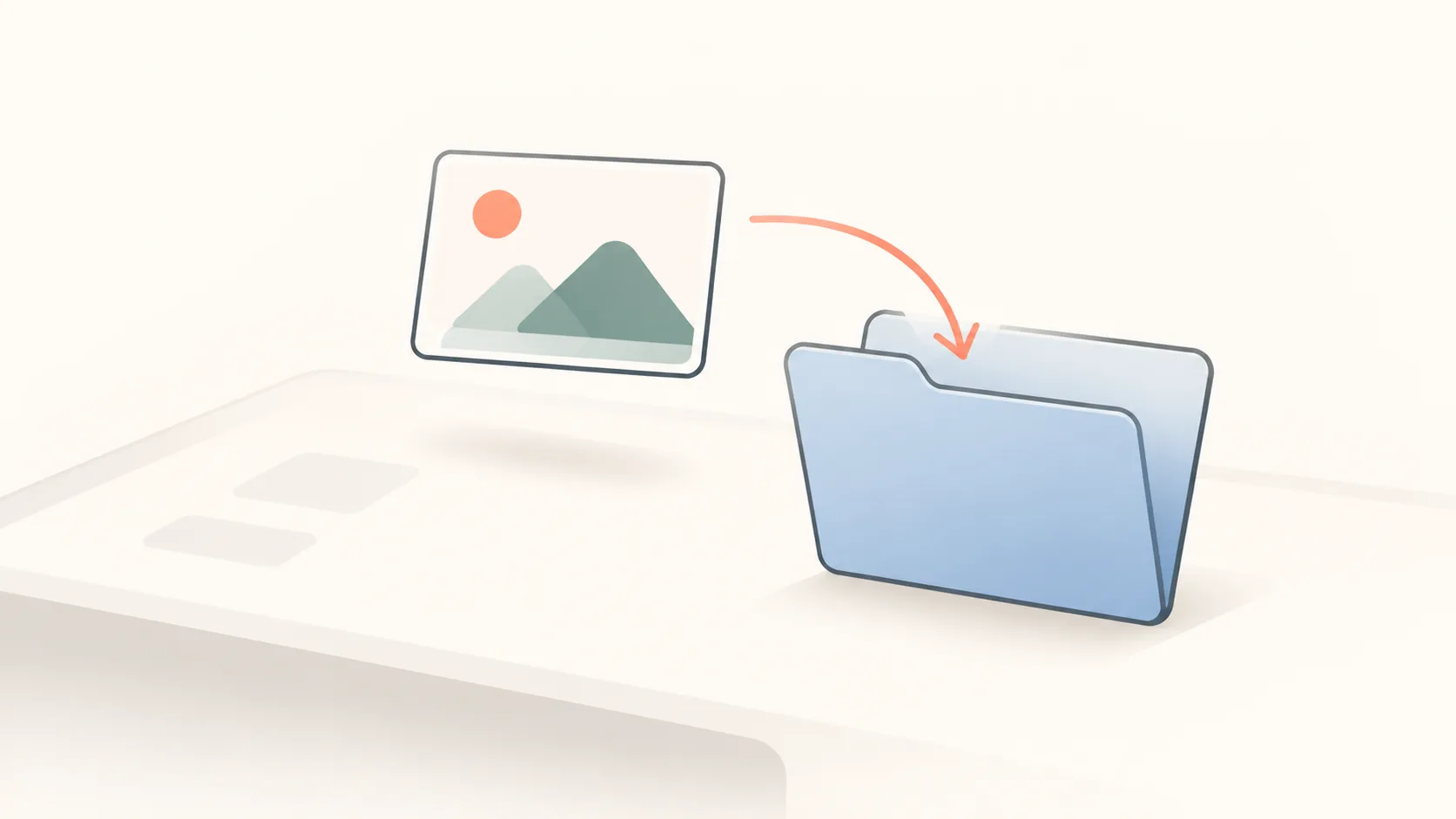
To change where screenshots are saved on a Mac or MacBook, press ⇧⌘5, choose Options → Save to → Other Location, and select a folder. Take a small test capture afterward to confirm the destination.
Guide updated September 23, 2026.
Where do Mac screenshots go by default?
The default destination is the Desktop. If a capture is missing, check the current destination rather than assuming it is still the default. It may have been changed to a folder, the clipboard, or another destination.
Apple describes the available settings in its Screenshot guide. These instructions apply to the built-in Screenshot tool; capture apps such as Floatie manage their own destinations.
Choose a dedicated folder
- In Finder, create a folder such as
Pictures/Screenshots. - Press ⇧⌘5 to open Screenshot.
- Open Options, then Other Location under Save to.
- Select the folder and confirm it.
- Capture a small area and check the folder.
The change applies to future captures from the built-in tool. It does not move the screenshots already on your Desktop. Move those separately if you want them in the new folder.
For names and a simple filing routine, see how to organize screenshots on Mac.
Restore saving to the Desktop
Open the same Screenshot options and select Desktop under Save to. You do not need a Terminal command to switch back.
If the destination is on an external drive or a shared folder, make sure it is available when you capture. For troubleshooting, select a local folder and take a fresh test screenshot.
Save to the clipboard instead of a folder
Choose Clipboard in the same menu when your captures are usually going straight into messages. A clipboard capture does not leave a screenshot file in the selected folder.
If you only want to copy one capture, use the Control modifier instead. The clipboard screenshot guide covers both the shortcut and the persistent setting, plus destinations that only accept file attachments.
Why did the screenshot not appear in the new folder?
Check these before changing more settings:
- The destination is Clipboard. Paste the capture into an image-capable app, or change the destination back to a folder.
- You used a clipboard shortcut. Holding Control during capture sends that capture to the clipboard.
- Another app took the screenshot. Its settings are separate from Apple’s Screenshot options.
- You are looking for an old capture. Changing the destination does not relocate existing files.
- The chosen folder is unavailable. Select a local folder and test again.
Use floating captures for temporary references
If you mainly capture something to glance at while working, Floatie’s region capture leaves it floating on your screen. You can keep the reference visible without first naming and filing an exported image.
Floatie still stores local history in an app-managed folder, subject to its retention settings. Save important captures as files when you want to keep them. Clipboard copy and drag-out require Pro; turning on Save copy on ⌘C with a save folder also creates a file during copy. Those preferences are separate from the macOS save-location setting.
For files you intend to keep, a dedicated folder is enough. For a one-off reply, use the clipboard. For a reference you need beside another window, try a floating capture.
Ready to float?
Free for 14 days with everything unlocked. After that, a one-time purchase keeps Floatie Pro for good, or a monthly or yearly plan does the same and adds Floatie Link Pro.