How to Organize Screenshots on Mac and Keep Your Desktop Clear
Keep the screenshots you need to find again. Give the ones you only need for a moment a different path.
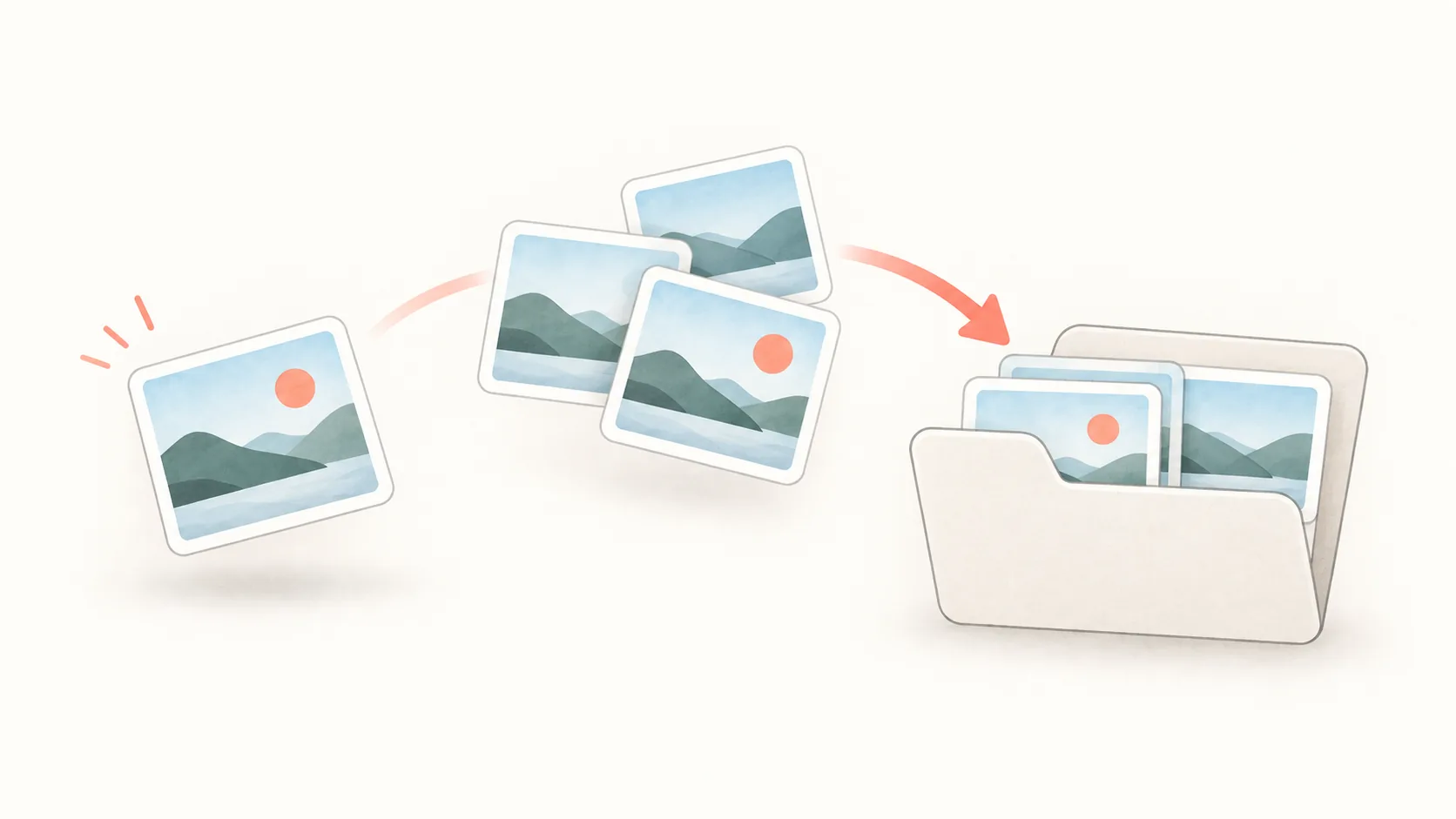
To organize screenshots on a Mac, send new captures to one folder, rename the ones worth keeping, and review temporary captures regularly. Use the clipboard for images you only need to paste once. Desktop stacks can tidy the view, but they do not remove files or reduce storage use.
The useful distinction is what you will do with the capture next. A receipt, an error report, and a number you need to glance at for ten seconds do not need the same filing system.
1. Give new screenshots an inbox
Create a folder such as Pictures/Screenshots. Set it as the destination using the screenshot save-location settings. Treat it as an inbox, not the final home of every image.
Changing the destination affects new captures. Move existing screenshots separately if you want them in the same folder, and check the selection before moving a large group.
Keep the folder structure small to begin with:
| Capture | Suggested destination |
|---|---|
| A reply you will send once | Clipboard, then the message |
| A reference for today’s work | Temporary inbox or floating capture |
| Evidence for a project or support issue | That project’s folder |
| A reusable guide or reference | A named reference folder |
2. Rename only the images worth keeping
A timestamp tells you when you captured something. It rarely tells you why. For a file you will need later, use a name such as 2026-09-23-checkout-error.png or onboarding-step-2.png.
Choose terms you would search for: project, screen, and issue. Keep the extension unchanged. There is little value in renaming a picture you will paste once and discard.
3. Use stacks for the desktop you already have
Control-click the desktop and choose Use Stacks. You can group the stacks by kind, date, or tags. Apple explains the controls in its desktop stacks guide.
Stacks make a crowded desktop easier to browse, but the images are still there. Sorting them visually and deciding what to retain are separate jobs.
4. Keep temporary references out of the archive
If you only need to send an image, capture directly to the clipboard. Paste it before another copy action replaces it. Save a file when you need a durable record.
For references you need to keep visible, Floatie leaves a capture floating beside your work. Close it when finished and use ⌘⇧H to browse recent shots in the history rail.
Floatie’s history is stored locally in an app-managed folder. It is not zero-storage capture or a permanent backup: count, disk-space, and retention settings limit what stays. Export important images into your project folder before relying on them long term. Clipboard copy and drag-out are Pro features; capture and history are free.
5. Review the inbox when the work is done
At the end of a project or once a week, move useful captures into their final folders. Put unwanted files in the Trash after reviewing them. Avoid treating every file with “Screenshot” in its name as disposable; some may be the only record of an issue.
If an image is still needed but too large to attach, reduce its size and keep the original until you have checked the result.
Does changing the screenshot folder move old captures?
No. The new location is for future captures. Existing files stay where they were until you move them.
Is screenshot history a backup?
Not by itself. An app’s history can expire or remove older entries when it reaches a limit. Save important captures as files and include them in your usual backup process.
Ready to float?
Free for 14 days with everything unlocked. After that, a one-time purchase keeps Floatie Pro for good, or a monthly or yearly plan does the same and adds Floatie Link Pro.