How to Reduce Screenshot File Size on Mac Without Losing Readability
A smaller attachment is only useful if the person receiving it can still read the error message. Start with the area you captured.
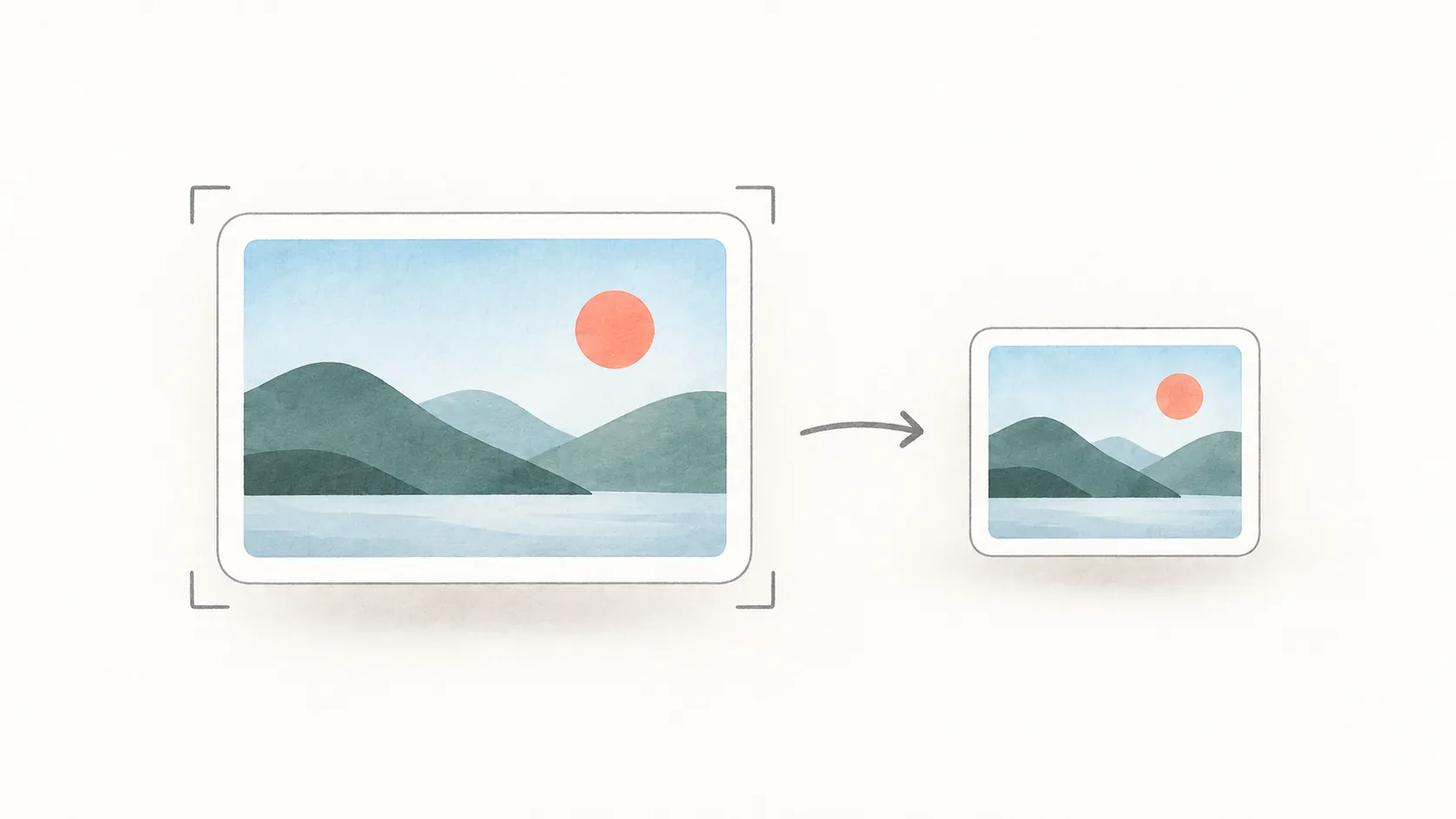
To reduce a Mac screenshot’s file size, first remove unnecessary content, then consider reducing its pixel dimensions or exporting a JPEG. Preview can handle those operations. Keep the original so you can compare the result before sending it.
There is no single quality setting that works for every screenshot. A photo-heavy page and a terminal full of small text need different treatment.
Capture only what the recipient needs
A full desktop often includes wallpaper, unrelated windows, and a menu bar that add nothing to the explanation. For an error report, keep the error and enough surrounding interface to identify where it happened.
It helps to decide this before capturing. Floatie’s region capture lets you draw around the relevant area and inspect the resulting floating shot.
Do not crop so tightly that a warning loses its dialog title or a chart loses its axis labels. A slightly larger, understandable picture is more useful than a tiny, ambiguous one.
Reduce pixel dimensions in Preview
On a duplicate of the image, open Preview’s Tools → Adjust Size. Use pixels, keep Scale proportionally enabled, and enable Resample image to reduce the pixel count. Enter a smaller width, save, and inspect the result. Apple explains Preview’s resizing controls.
For example, reducing a 2400 × 1600 image to 1200 × 800 leaves one quarter as many pixels. That does not guarantee a file one quarter the size: format and image content also matter. Small text may become harder to read, so compare it at the size your recipient will actually view.
Choose PNG or JPEG for the content
PNG is a useful starting point for interface screenshots, text, and sharp lines. JPEG is worth trying when most of the image is a photograph, but compression can leave visible artifacts around letters and borders.
In Preview, use File → Export, choose JPEG, and adjust the quality slider. Export under another name and compare it with the original; Apple documents the format and quality options. Renaming .png to .jpg does not convert an image.
For an upload with a strict limit, check the exported file’s size in Finder. If it is still too large, make one further change and compare again. There is no need to hit the lowest possible size once the attachment fits and remains readable.
Check the actual attachment
Before sending, open the exported file and read its smallest important text. Check arrows, thin chart lines, and any transparent edges too. If the destination shows an uploaded preview, inspect that version as well.
Need no attachment at all for a quick message? Copy a screenshot to the clipboard and paste it directly. That simplifies the workflow, although it does not guarantee a smaller image or bypass upload limits.
Ready to float?
Free for 14 days with everything unlocked. After that, a one-time purchase keeps Floatie Pro for good, or a monthly or yearly plan does the same and adds Floatie Link Pro.