How to Copy a Mac Screenshot to the Clipboard Without Saving
If a screenshot is only going into a message, you can skip the desktop file. The built-in shortcut already does this.
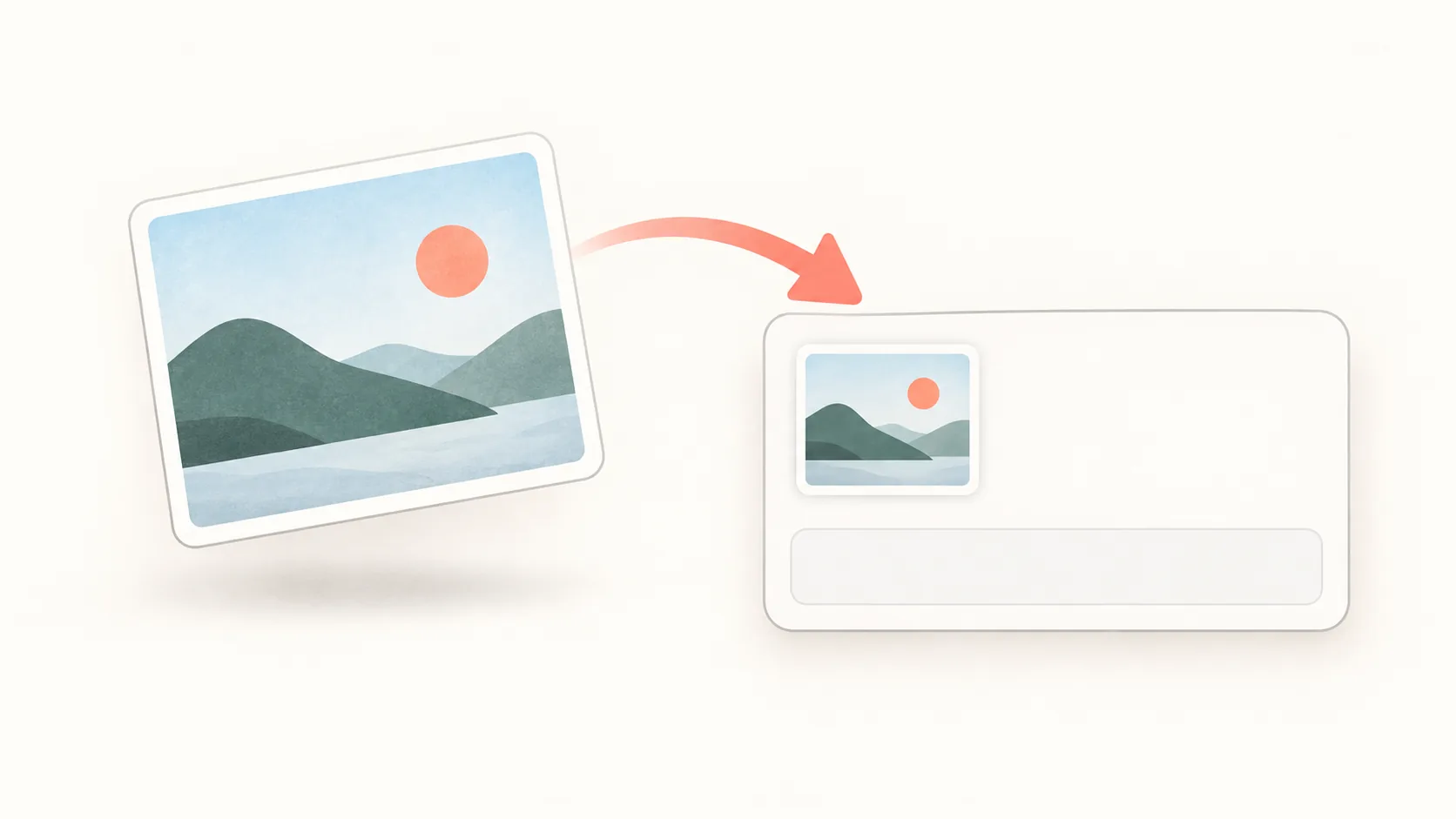
To copy a selected part of your Mac screen directly to the clipboard, press ⌃⇧⌘4 (control+shift+command+4), drag over the area, then paste with ⌘V in an app that accepts images. There is no screenshot file to find on the desktop.
That is usually enough for a quick reply. If you need to inspect or annotate the capture before sending it, a floating screenshot gives you somewhere to keep it while you work.
The built-in clipboard shortcuts
| What to capture | Shortcut |
|---|---|
| A selected area | Control + Shift + Command + 4, then drag |
| The whole screen | Control + Shift + Command + 3 |
Apple documents Control as the extra key that sends a screenshot to the clipboard. You can also Control-click the capture thumbnail and choose Save to Clipboard. See Apple’s screenshot guide.
Make Clipboard the default destination
For repeated clipboard captures, press ⇧⌘5, open Options → Save to, and choose Clipboard. Take a test screenshot and paste it. To save files again, return to that menu and select a folder. This setting belongs to Apple’s Screenshot tool; other capture apps have their own settings. See Apple’s Screenshot options.
Use the Control shortcut when only this capture needs to be copied; change the destination when clipboard captures are your usual workflow.
Paste into the message before copying something else
Click the actual message composer or document body before pressing ⌘V. A search box or a plain-text field cannot necessarily accept an image, even when the app supports image attachments elsewhere.
Copying a URL or another piece of text can replace the screenshot on the clipboard. When a message needs both, paste the picture first and add the text afterward. Keep a saved copy if you will need the image again later; the clipboard is a handoff, not an archive.
If you want the words inside the picture rather than the picture itself, that is a separate operation: copy text from a screenshot with OCR.
When pasting does nothing
Try pasting into a second app that accepts images. If it works there, the original destination may require a file upload instead of a clipboard image. Save the capture and use its attachment button, or drop a file onto its upload area.
Also check whether another copy action replaced the image. Retake a small capture and paste it immediately to rule that out.
Keep the capture visible with Floatie
Floatie’s capture tool leaves the selected region floating on your screen. With the shot active, ⌘C copies its image. Clipboard copy and drag-out require Floatie Pro; the editor does too.



If you want to keep the folder clean, leave Save copy on ⌘C off in Settings → Capture. Enabling it and selecting a save folder also creates a file when you copy. That can help destinations which need a file, but it changes the no-extra-file workflow. See clipboard and drag-out options.
For a single image in a chat, use the built-in shortcut. For a capture you need to keep visible or mark up before copying, try the floating workflow. If you prefer keeping every capture, choose a screenshot save folder instead.
For a mix of temporary references and long-term files, see how to organize screenshots on Mac.
Ready to float?
Free for 14 days with everything unlocked. After that, a one-time purchase keeps Floatie Pro for good, or a monthly or yearly plan does the same and adds Floatie Link Pro.